



Monitor Arm Buying Guide: How to Pick One That Won’t Sag
Pick a monitor arm that holds its position: check your monitor's weight and VESA pattern, choose single, dual, wall or sit-stand, and make sure your desk fits.


Buying guide
Two screens, one clamp, a clear desk. How to choose between the F160 and H180 dual monitor arms, lay out your screens and avoid the three most common setup mistakes.
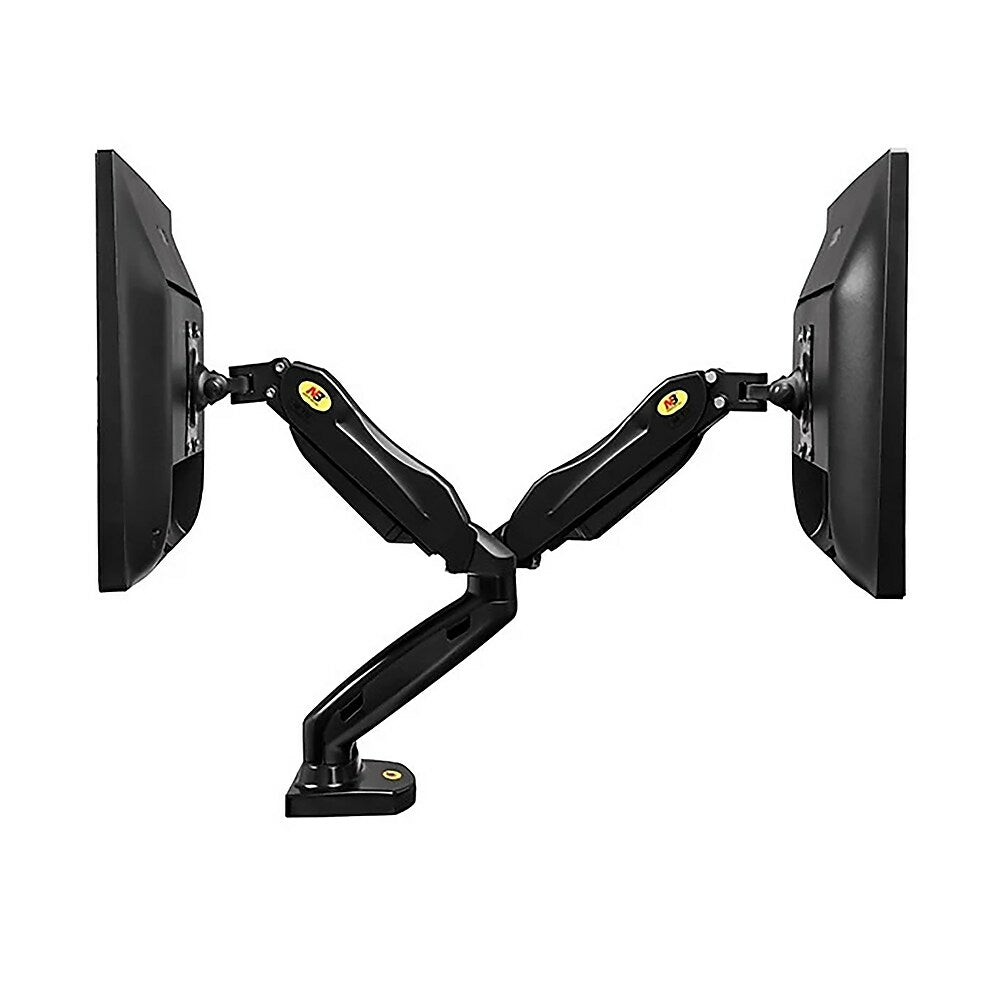
Two monitors on their factory stands eat half a desk and never quite line up. Put both on one dual arm and you get the desk back, the screens meet edge to edge, and each one moves on its own. The only decisions are which arm and which layout.
The short version
| Spec | F160 | H180 |
|---|---|---|
| Screens | Two, 17–27 in | Two, 22–32 in |
| Load per arm | 4.4–14.3 lb | 4.4–33 lb |
| Tilt | −50° to +35° | −30° to +85° |
| Rotation | 360° | 360° |
| Also | USB and audio ports in the base | 12.6 in of height travel |
| Best for | Standard 24 and 27 in office monitors | Larger, heavier or curved monitors |
Both fit VESA 75 × 75 and 100 × 100 mm, and both use an independent gas spring for each screen, so you can set one monitor high and the other low.

The classic. If you use both screens equally, put the seam between them straight ahead and angle each one slightly toward you. If one screen is your main display, centre that one and put the second beside it at the same height and distance.
One screen above the other suits narrow desks, trading and monitoring setups. Keep your main screen at eye level and use the upper one for reference. The H180 can be set up stacked as well as side by side, which makes it the better choice here.

Turn one monitor upright for code, documents or chat while the other stays wide. Both arms rotate each screen through 360°, so you can switch back any time.
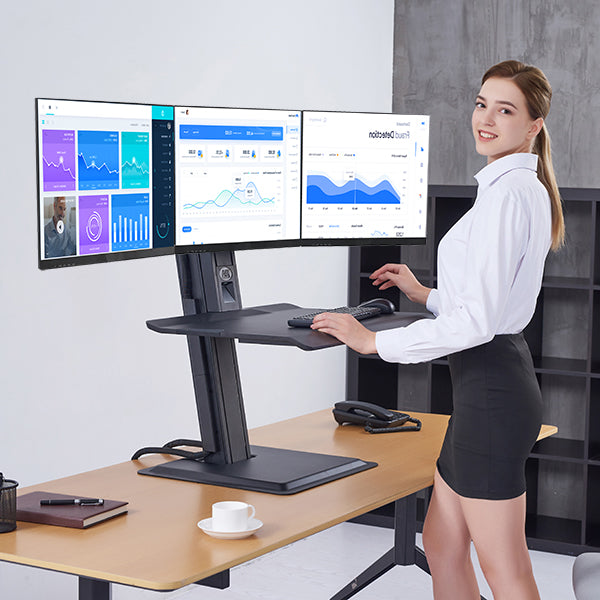
The ST15-3A sit-stand workstation carries three 19–24 in monitors and raises them, with your keyboard, to standing height. See how it compares in standing desk vs desk converter.
Browse all dual monitor arms, or read our monitor arm buying guide if you are still deciding between one screen and two. Every order ships free across Canada.
Monitor Arm
2 × 22–32 in · 33 lb each
Sit-Stand Workstation
3 × 19–24 in · Desk converter
Pick a monitor arm that holds its position: check your monitor's weight and VESA pattern, choose single, dual, wall or sit-stand, and make sure your desk fits.
Clamp it, hang the monitor, set the tension. A step-by-step install for gas-spring monitor arms, plus the two-minute fix for an arm that droops or drifts upward.
Three gas-spring arms, three weight classes. A straight comparison of North Bayou’s F80, F85A and F45, so you buy the one that holds your monitor exactly where you...
Try the mount finder for an instant match, or send us your screen model and wall type and we'll recommend a mount.

